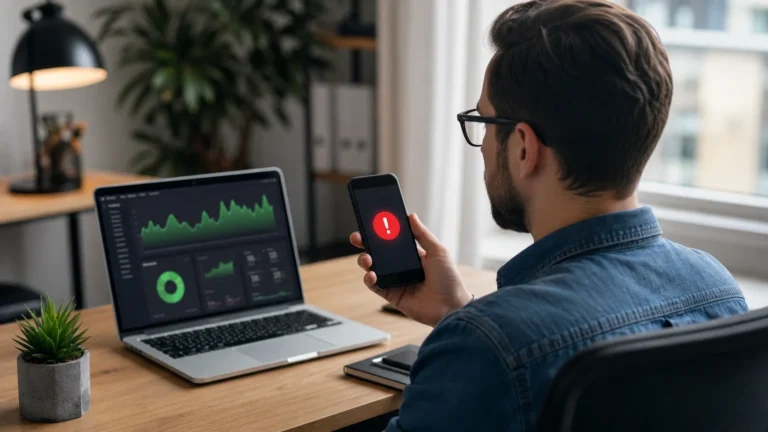
WordPress dashboards can look calm today and messy next month. One plugin adds one card. One client request adds one more. In six to eight weeks, users can no longer find key actions. That is when speed drops and support tickets rise.
A clean screen is not about style only. It is about reducing time spent looking. When users finish tasks faster, your team handles more work without adding headcount.
What happens if you do nothing
- Support asks repeat questions: where is the publish button, where is media, where are comments?
- Editors create workarounds outside the system.
- Admins lose trust in the dashboard and start turning things off.
- Small teams lose 10 to 20 minutes per task because of search and confusion.
Before cleanup: full inventory
- Back up site files and user metadata.
- Create a list of roles: owner, editor, writer, translator, support, and client.
- Log in as each role and record what each person really uses.
- Count clicks per widget for one week, not by memory.
- Mark each item as keep, test, move, or remove.
- Set rollback instructions for each removal.
- Plan a maintenance window and send one clear notice to all users.
- Open a staging copy before touching production.
Before cleanup, check your current state with the official cleanup path. If your team also needs security control, align with 2FA policies so security changes and layout changes happen together.
What to keep, what to move, and what to remove
- Keep: publishing tools, moderation checks, real support alerts, and security notifications.
- Move to a report page: basic analytics blocks used less than once a week.
- Archive: legacy plugin notices with no use in the last 60 days.
- Remove: duplicate buttons that open the same screen.
- Test each batch: run one publish action after each change.
- Document: track the reason, role, and restore step for every item.
Role-first cleanup in practice
- Build one layout for owners. Keep security and update alerts visible.
- Build one layout for editors. Keep moderation and page status visible.
- Build one layout for clients. Keep only project progress and requests.
- Build one layout for support. Keep logs, tickets, and handoff notes.
- Train one staff member in each role on the new screen.
- Collect immediate feedback before rollout.
Safety checks during rollout
- Run one publish flow on staging before live change.
- Run one rollback flow on staging and keep the steps written.
- Check all plugin updates after cleanup, because updates can restore old blocks.
- Run role-based smoke tests for comments, media, and forms.
- Verify mobile display at phone width for every role.
After cleanup review
- Log in as each role and complete three real tasks.
- Record screen time before and after for one work week.
- Collect feedback after one day and one week.
- Check support tickets for button location questions.
- Re-add only what proves needed by usage logs.
- Keep one monthly review to avoid new clutter build-up.
Common mistakes after cleanup
- Cleaning only on production and not in staging first.
- Removing controls without confirming legal or finance users need them.
- Forcing one single layout for all teams.
- Not documenting plugin side effects during updates.
- Skipping monthly cleanup checks after first release.
Practical mini case example
A boutique agency had five clients and one owner. Their dashboard had over 30 visible cards. They removed analytics cards and old campaign plugins from client roles, but kept them in admin role. In two weeks, support tickets dropped by 40 percent and publish time improved. No task was blocked because security notices stayed visible for owners.
Common questions
Can cleanup harm reporting? Not if reporting is moved to one clear page and kept updated.
Who should approve final layout? One owner and one department lead per role set.
How often should this happen? Monthly for teams with many plugins, every 45 days for smaller teams.
Do clients need full dashboard access? No. Give only needed controls and a clean task list.
For regular health checks, follow our practical WordPress development hub. Keep monitoring close with our monitoring article.